Resize Images
In Image Flow, we provide a convenient bulk image resizing feature that allows you to select multiple product images and resize them all at once with ease.
Open the Image Flow app in your Shopify store, then navigate to the left sidebar and select the "Resize/Compress Images" option.
This will take you to the Resize Images user interface:
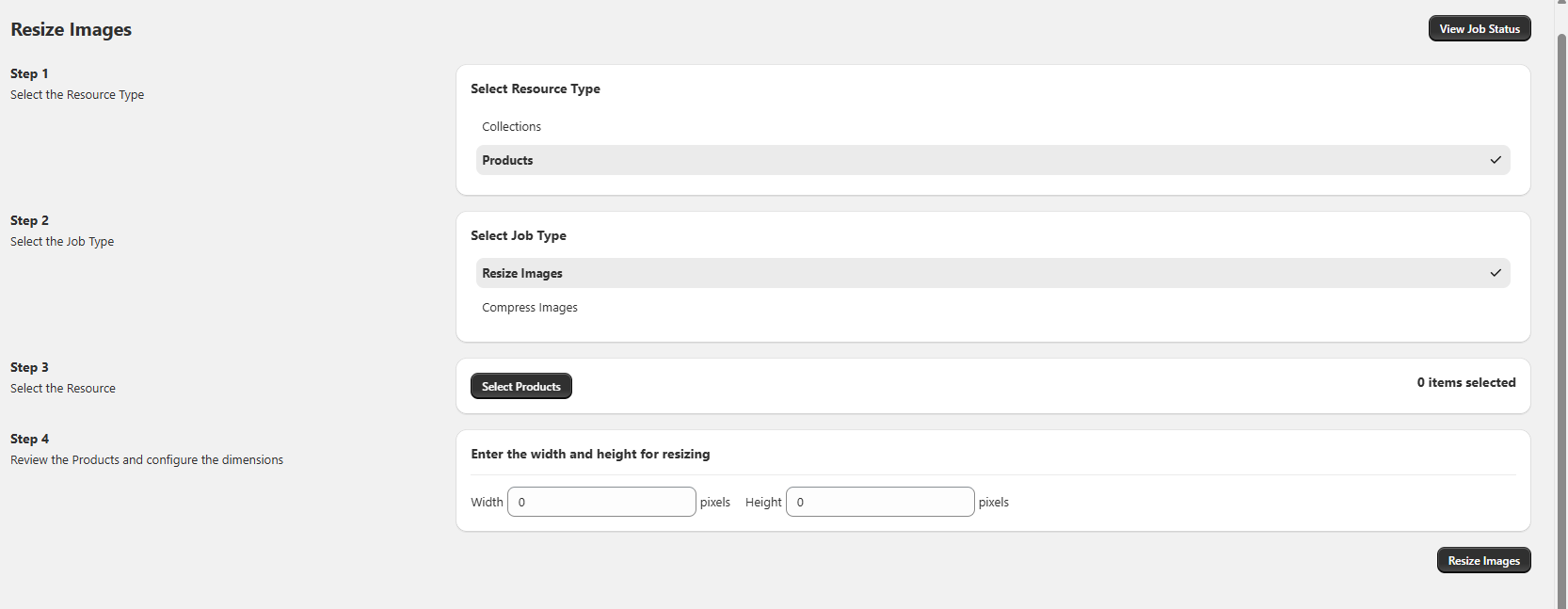
Here, you can select products in two ways: either choose all products from a specific collection or manually select individual products. Let's explore both options one by one.

Selecting All Products from a Collection
Select the "Collections" option from the "Select Resource Type" step, and select the "Select Collection" button.
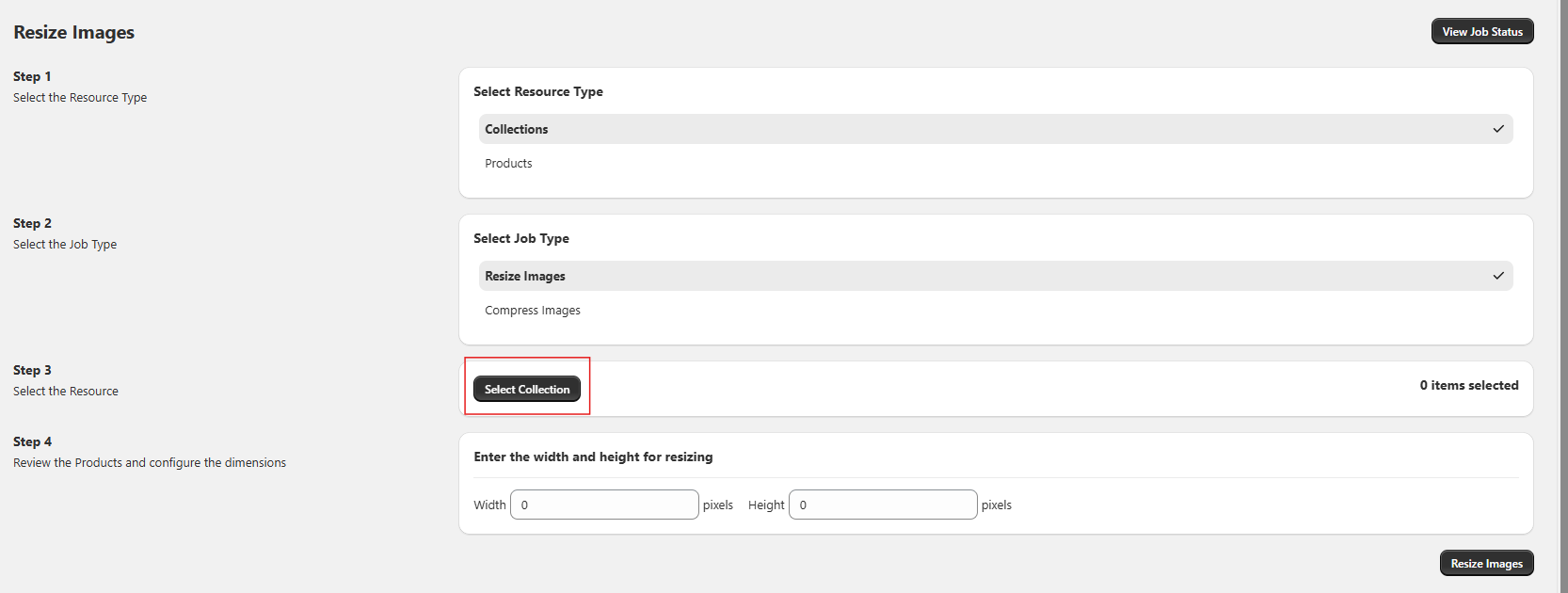
A modal will open, showing all the collections your store has.
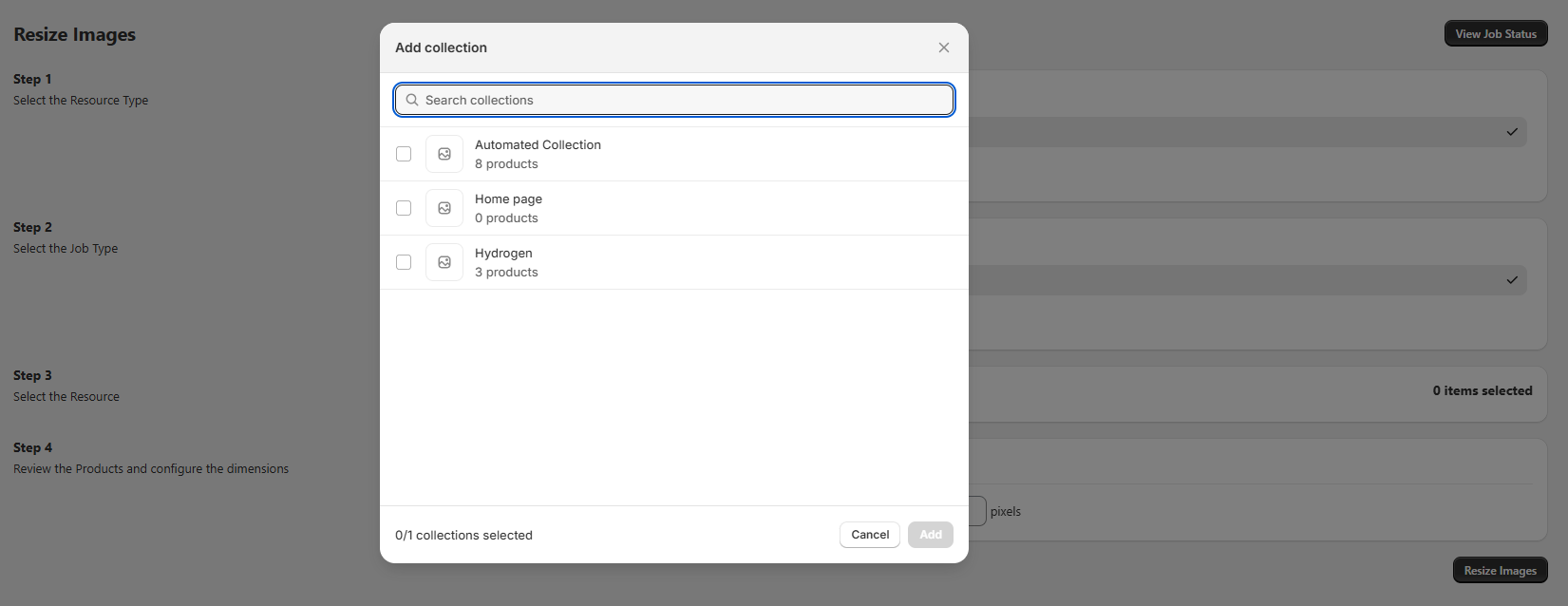
You can then choose the collection you want.
Selecting Products Manually
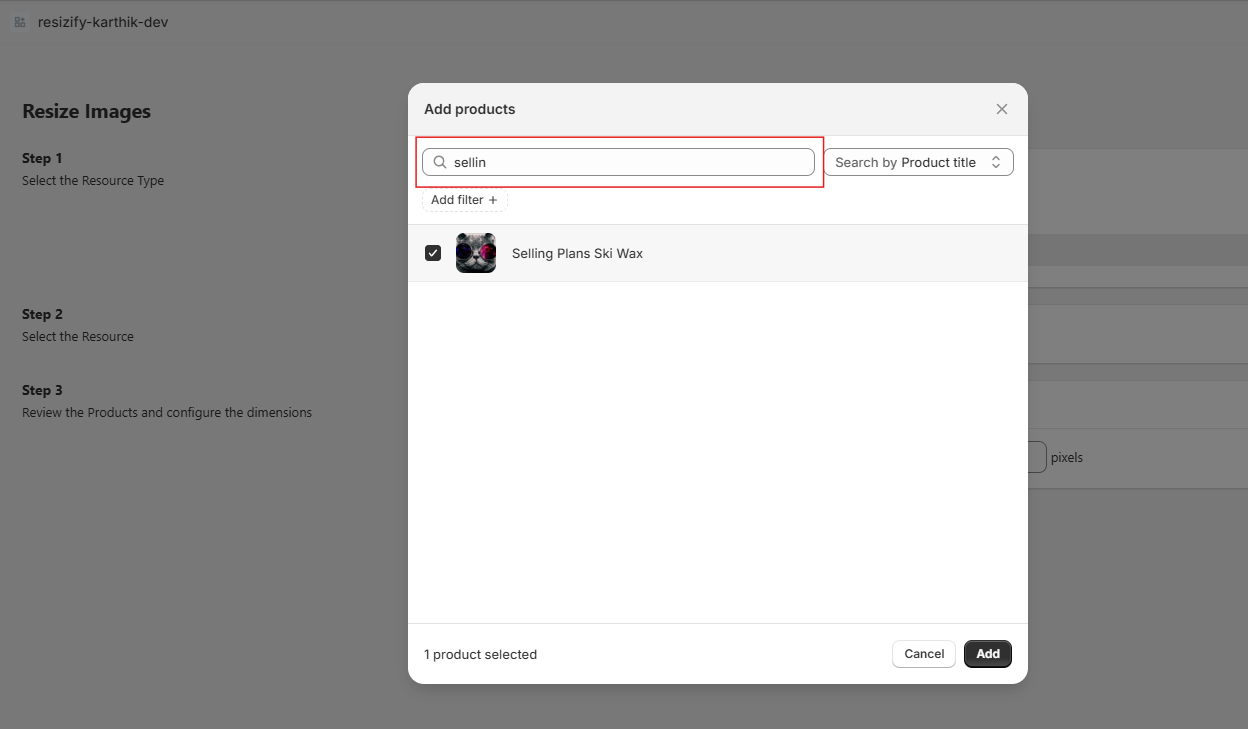
Select the "Products" option from the "Select the Resource Type" step, and select the "Select Products" button.
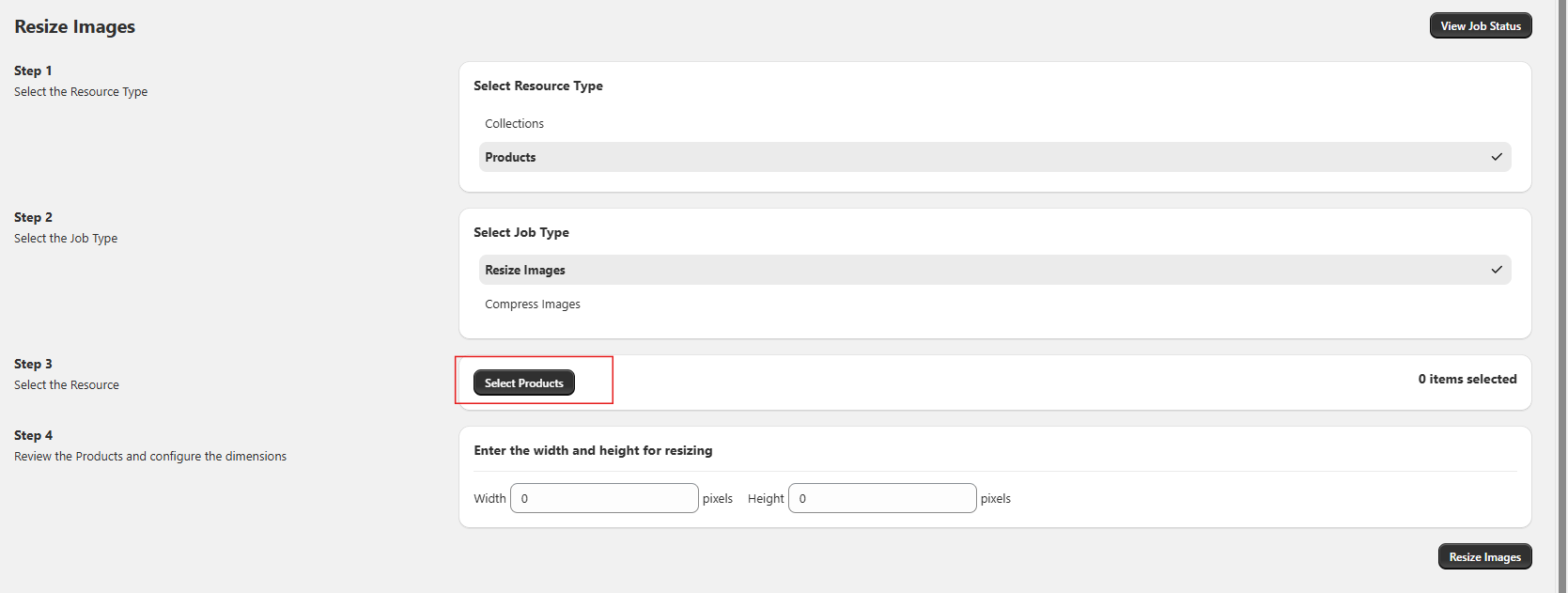
A similar modal will appear, allowing you to manually select products. You can also search for a specific product and select it.
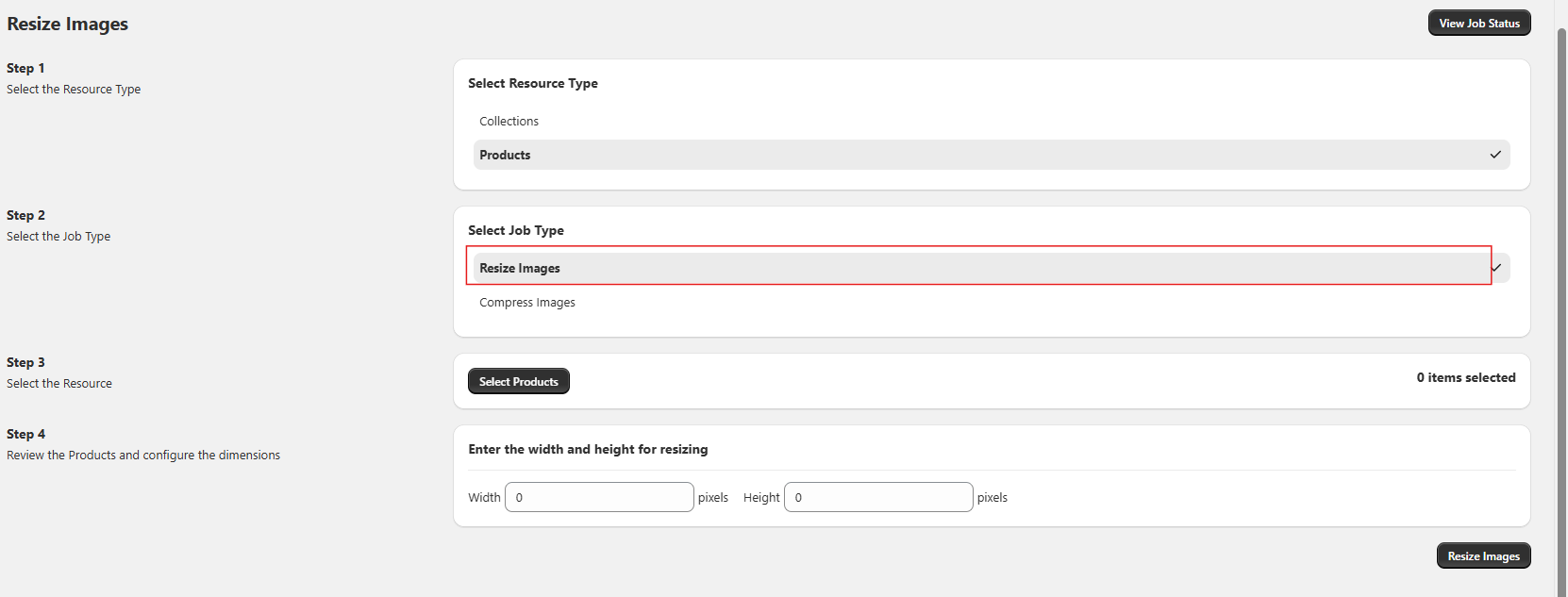
Selecting Resize Images Job Type
Select "Resize Images" from Step 2, Select Job Type.
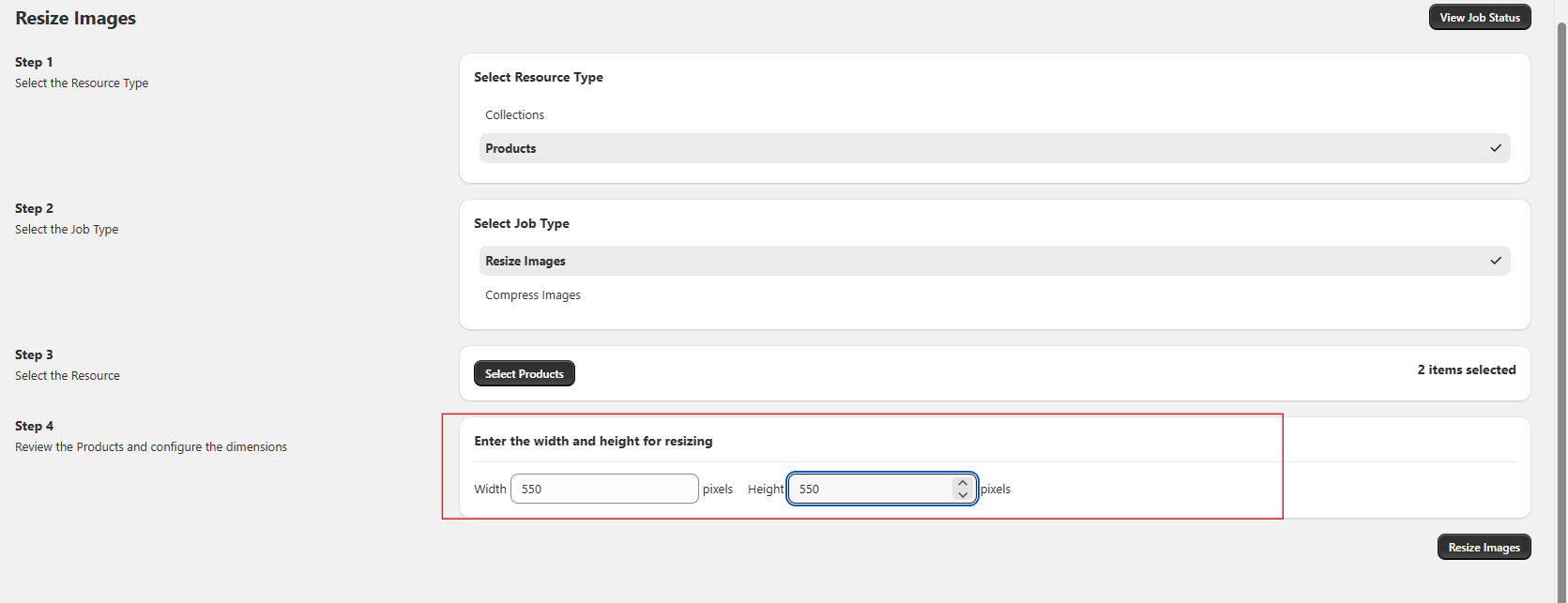
Entering Dimensions
After selecting the products, you need to enter the desired dimensions for resizing.

After entering the dimensions, click on the "Resize Images" button to start the image resizing process.
Confirming the Resize Operation
A confirmation modal will appear, notifying you that all images for the selected products will be resized to the specified dimensions. Click "Confirm" if you're ready to proceed.

Monitoring the Resize Job
After clicking "Confirm", you'll be taken to the Background Job Info page, where you can verify the selected products once the job is complete and monitor the logs in real time.
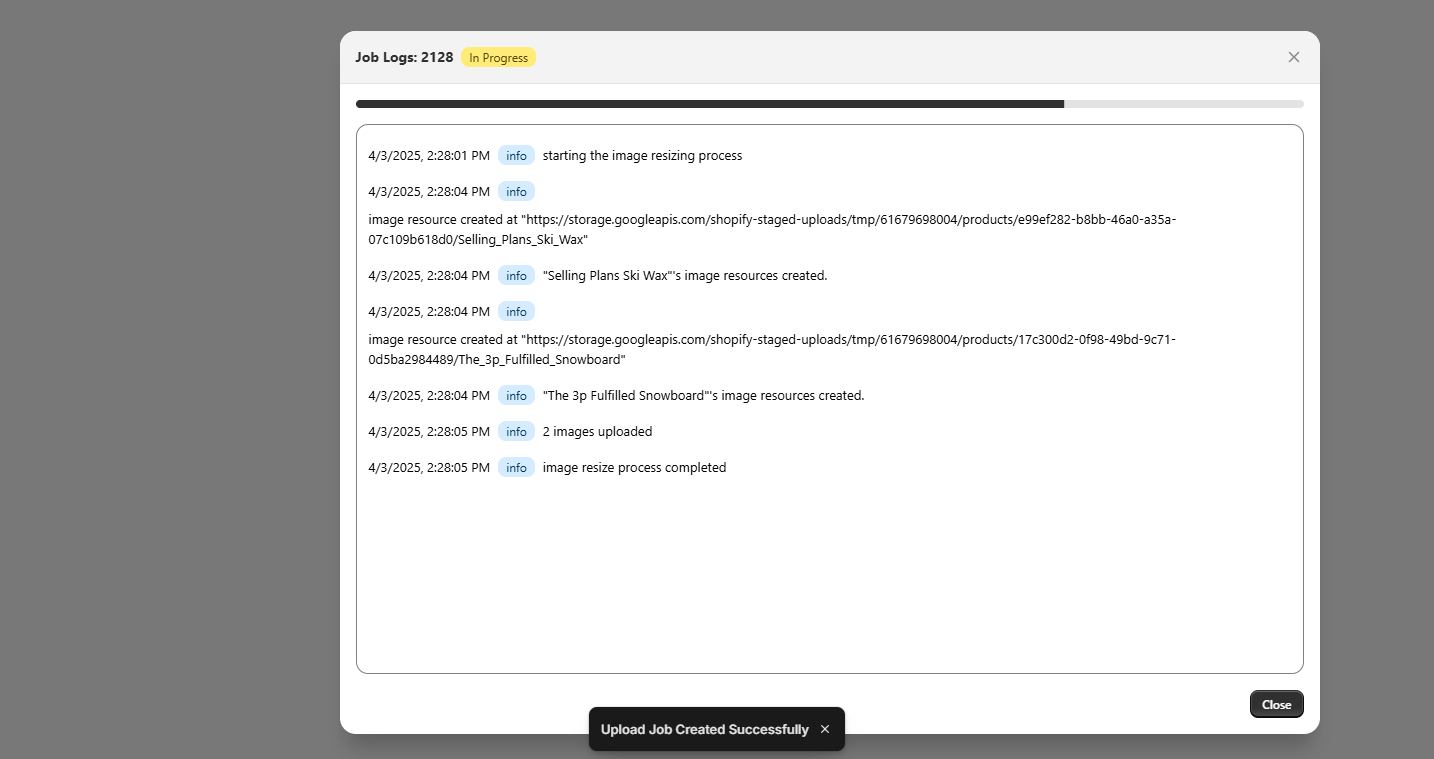
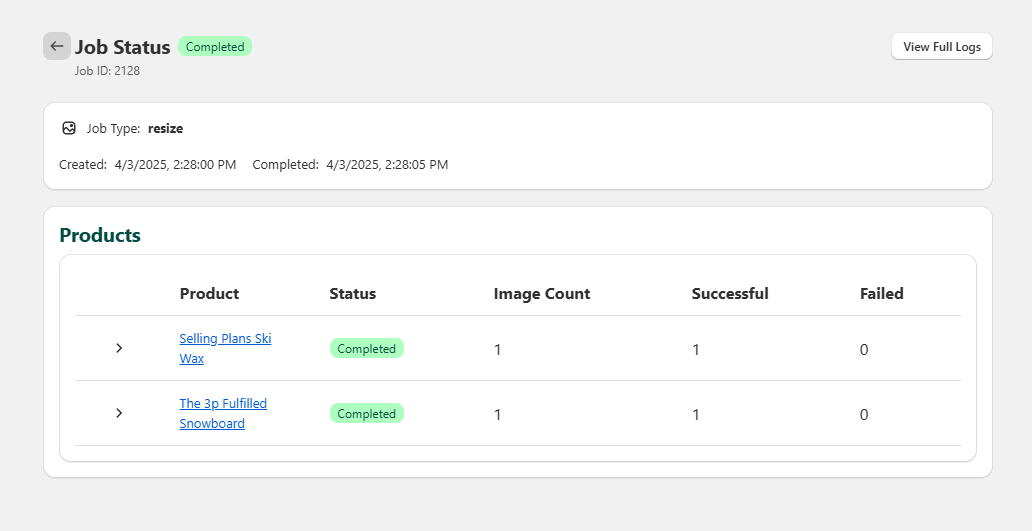
Viewing Resized Images
View the resized product images in your store by clicking on the product name, which also serves as a link to the product page.
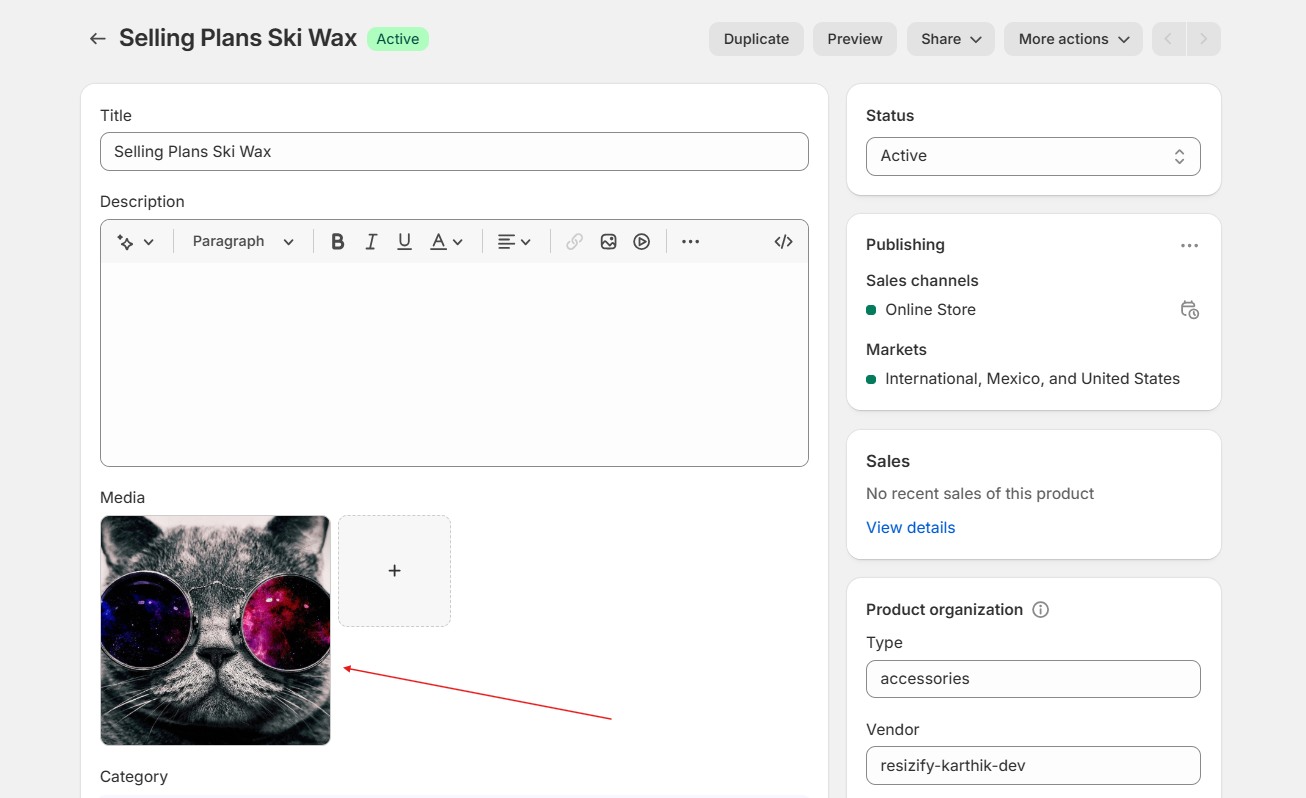
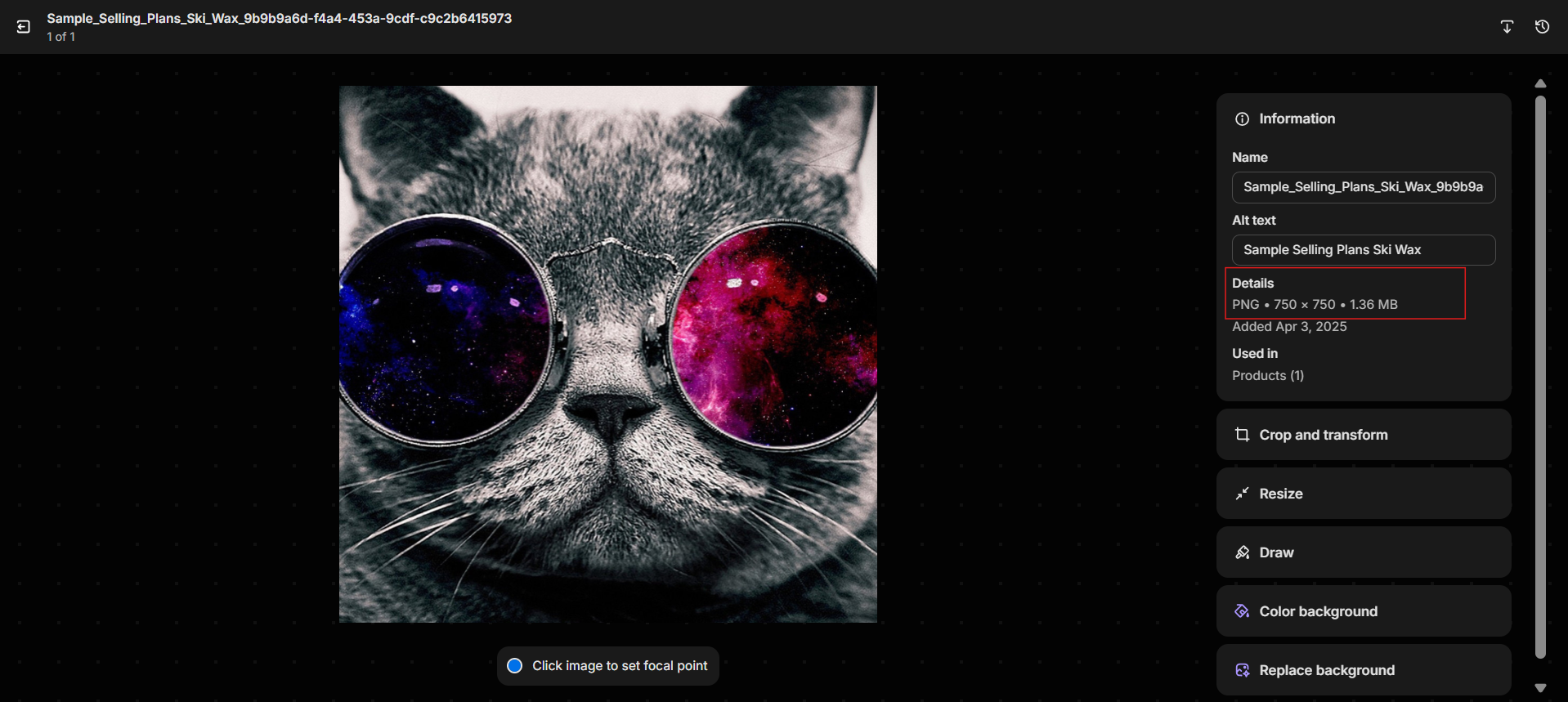
And that's it! That's how you can easily resize images using Image Flow.