Granting Collaborator Access
Granting collaborator access allows you to work together with other merchants on your store. In this tutorial, we will learn how to grant collaborator access to anyone.
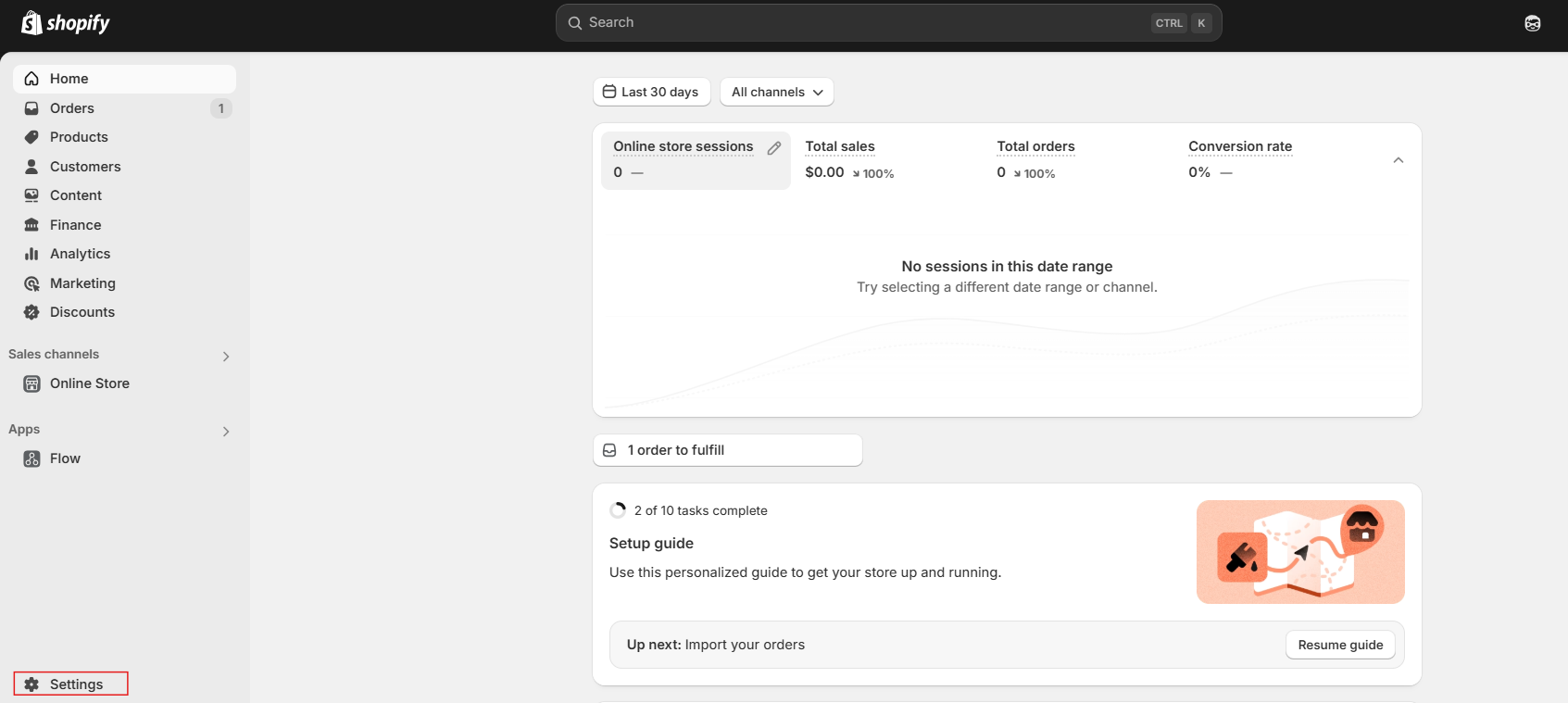
Open the store where you want to grant collaborator access. From the home page, click on "Settings" in the left-hand navigation section.
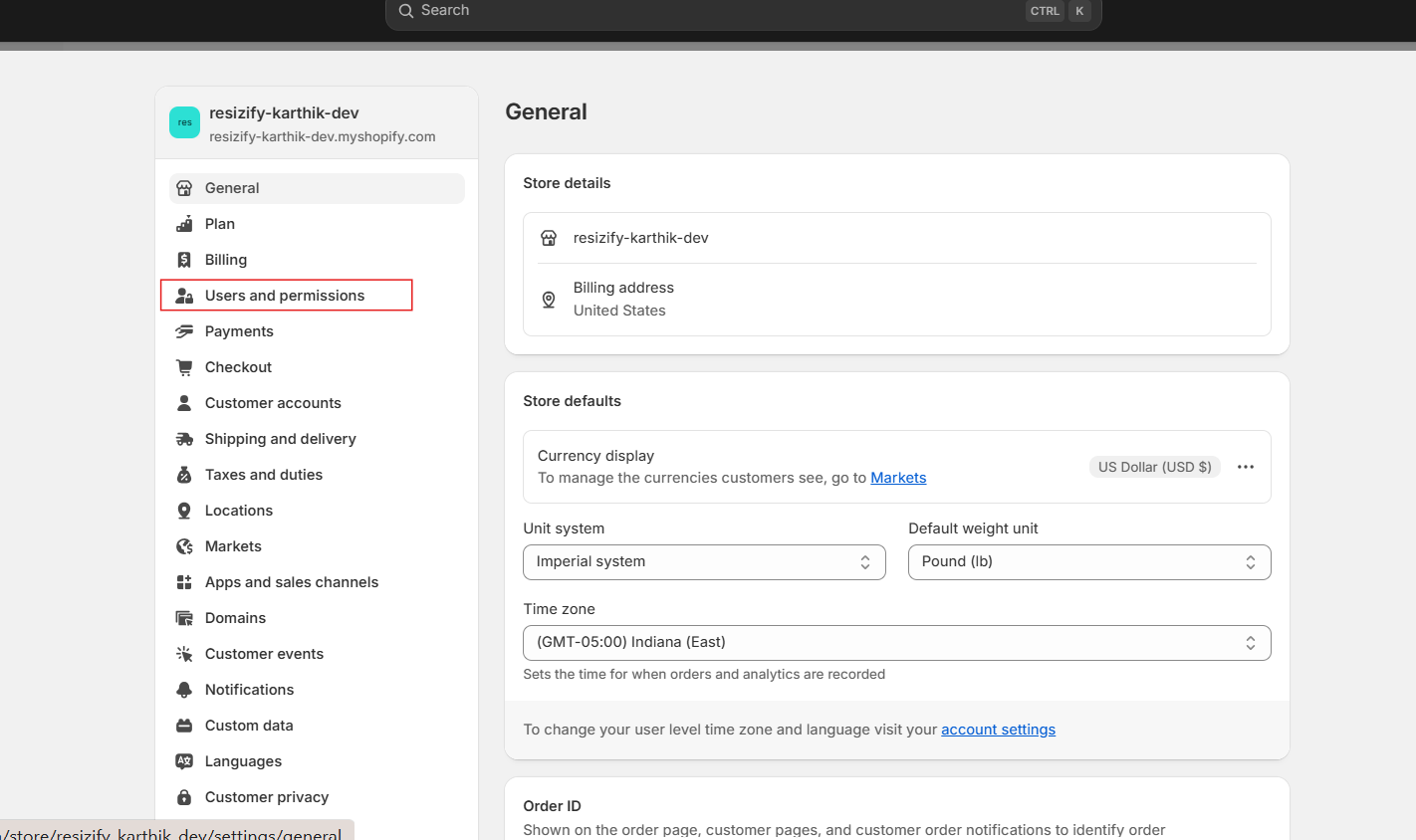
On the Settings page, you'll find various options to configure and customize your store. On this page, select "Users and Permissions" to proceed.
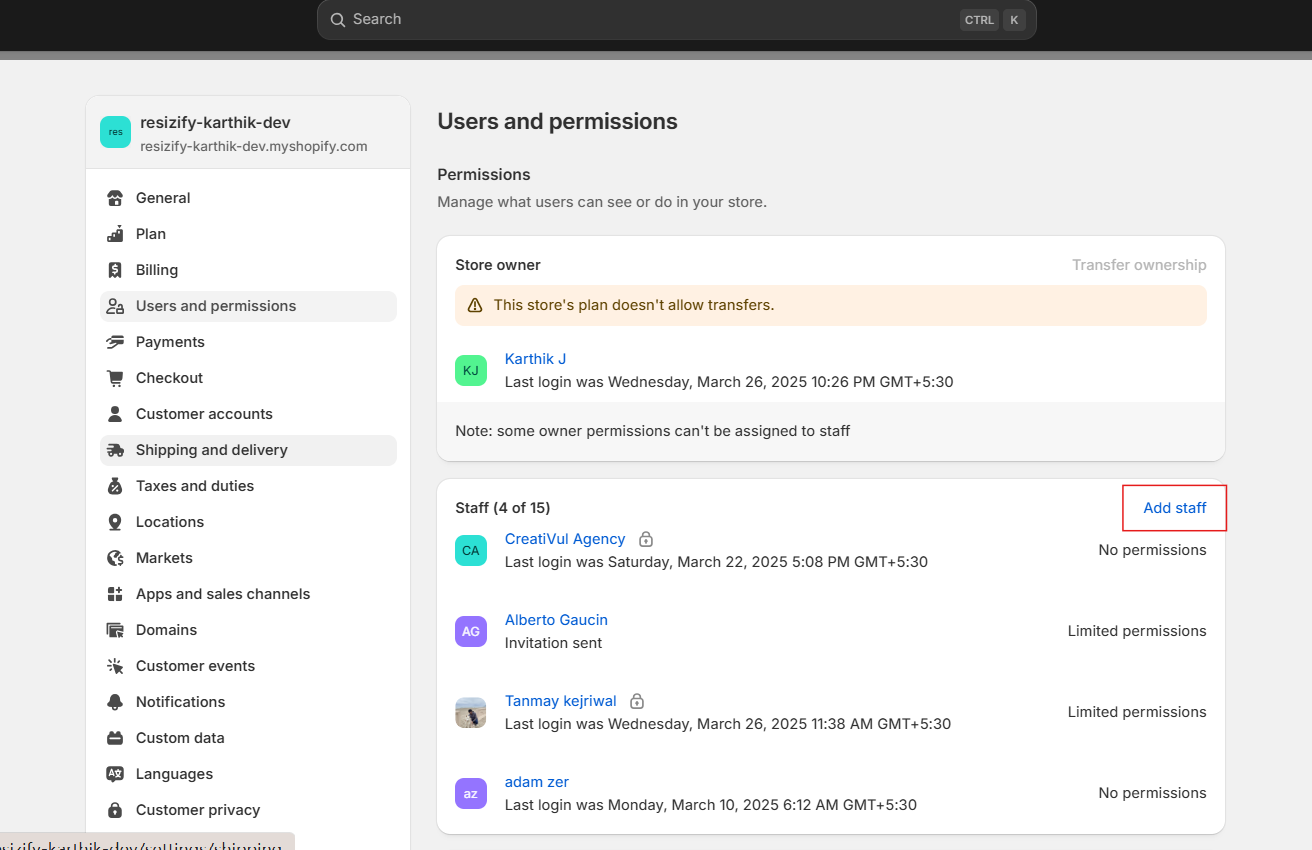
In this section, you'll see a list of collaborators for your store. Click on "Add Staff" to add new collaborators.
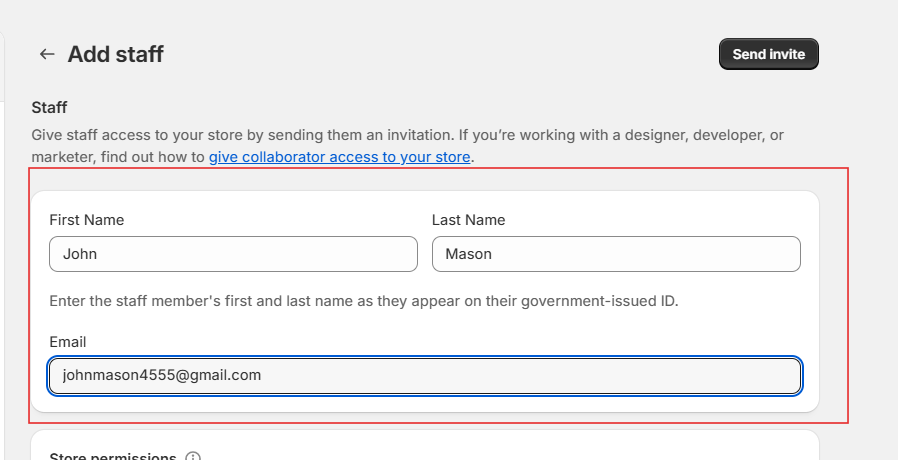
You will be taken to a page where you need to enter details for the collaborator you want to grant access to.
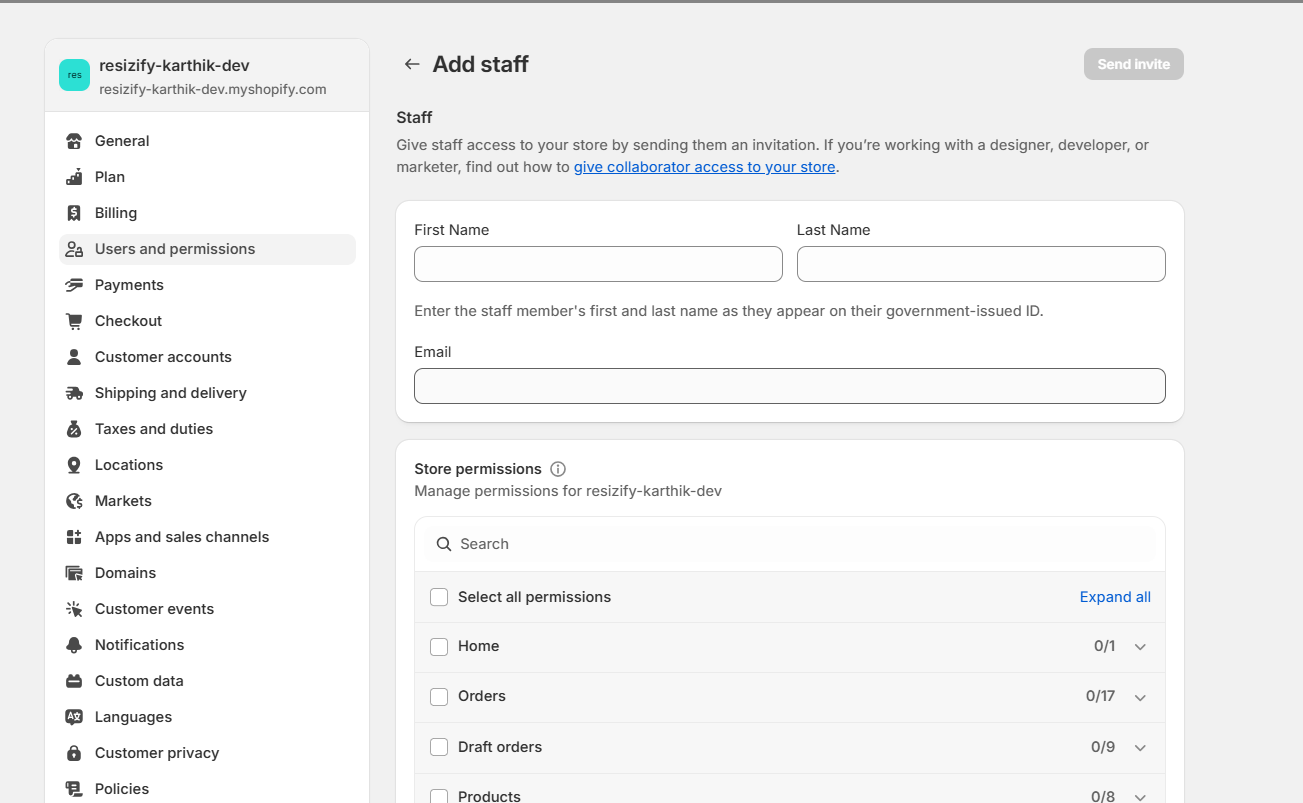
Fill in the required details, such as the collaborator's first name, last name, and email address.
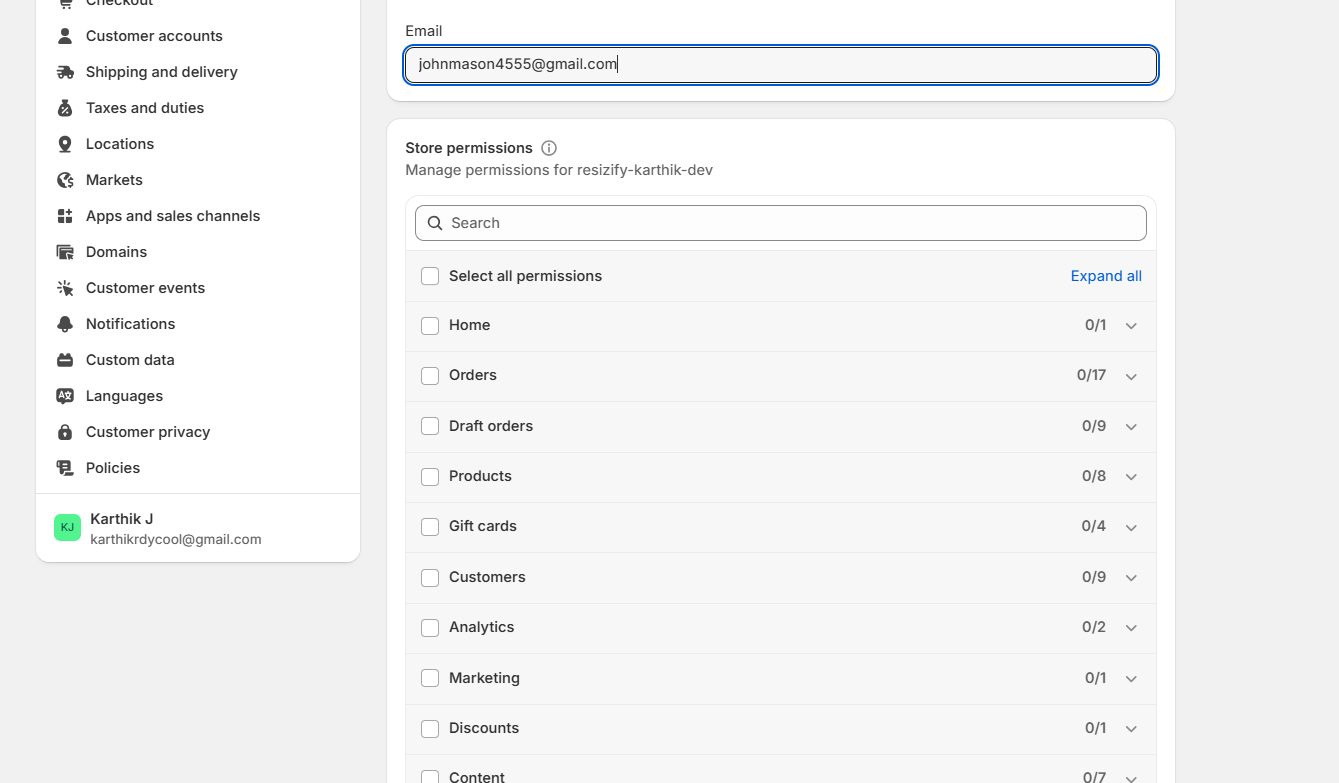
Next, configure the permissions for the collaborator, allowing access to areas such as the store's homepage, orders, products, and other essential features.
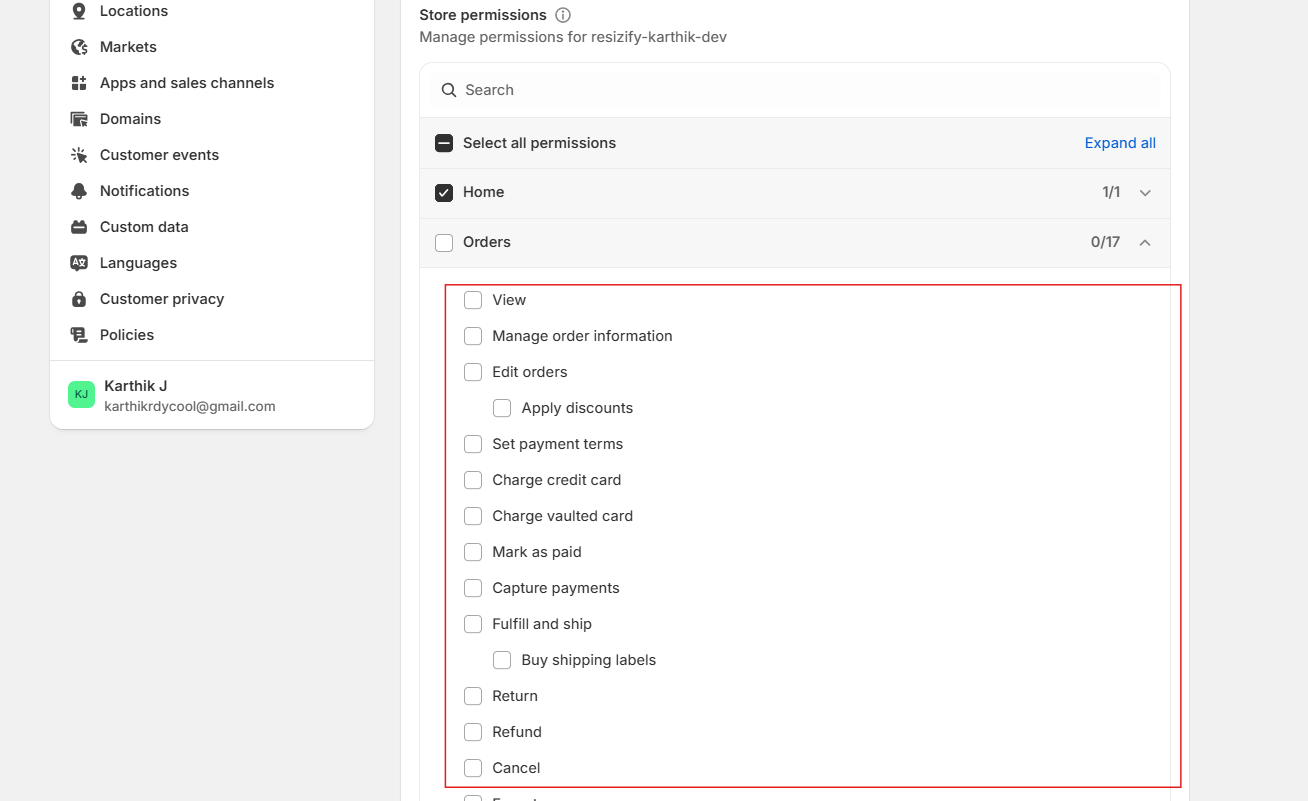
For each option, you'll also see a list of sub-features, allowing you to grant more granular control over the collaborator's permissions.
Next, you can choose the apps your collaborator will have access to in your store. Simply select the desired apps from the list.

Next, you have the option to grant Point of Sale (POS) access to your collaborator.
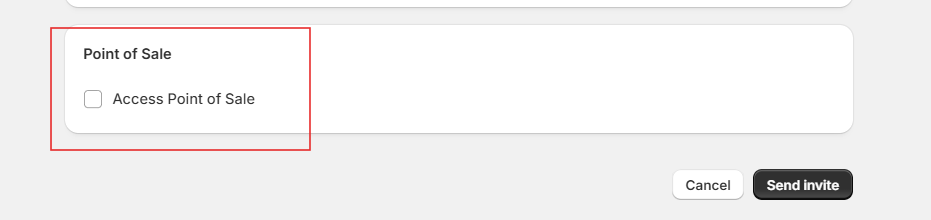
Once you've configured the collaborator's permissions, click "Send Invite". An email will be sent to the provided address, and the collaborator will need to complete the next steps to access the store.
That's it! You've successfully granted collaborator access.